Showing posts with label Utility laptop notebook. Show all posts

How To Fix "Network Controller is not found" on HP Pavilion dv7t

various problems on a laptop it makes us a little dizzy, especially when we need these features but suddenly there are unexpected things that resulted in one of the features on the laptop is not functioning normally, as in the case of HP Pavilion dv7t Entertainment Notebook PC-4000, sometimes you will find erorr when installing LAN driver that uses the type lan like Realtek, Broadcom, and others, erorr listed as below,

Network Controller is not found on HP Pavilion dv7t-4000


to improve these erorr, you must disable the power saving BIOS before installing the LAN drivers on the HP laptop you by following the steps as follows

  • Click Start, and then click Shut Down.
  • Select Restart, and then click OK.
  • When the first screen appears, press the F10 key to enter the BIOS Setup.
  • Use the arrow keys to scroll over to the System Configuration.
  • Scroll to the LAN Power Saving, press the Enter key to Disabled.
  • To exit the BIOS setup, press the F10 key, select Yes, and then press Enter.
Network Controller is not found on HP Pavilion dv7t-4000

after that try to re-install LAN driver on your HP laptop, and your LAN will function normally again.

Upgrading Toshiba laptop into windows 7 operating system

Toshiba laptop to replace the operating system into Windows 7, it can be performed on any series toshiba laptop over, the laptop is qualified to operate the windows 7, before you install  windows 7 a good idea to first back up all important data contained in the laptop to a CD media / DVD, 


  • Download and run Microsoft's Windows 7 Upgrade Advisor, this software can check whether your laptop hardware is able to run windows 7 
  • if you want to upgrade your operating system be 64 bit, it helps you update your laptop BIOS, for his update you can simply visit the Toshiba website and download the latest BIOS file for your laptop. 
  •  input windows 7 DVD into the DVD optical drive on toshiba laptop you 
  • When prompted by Windows 7 setup, click 'Go online to get the latest Updates (recommended)' to install any Important updates for Windows 7. 
  • Read and accept the Microsoft Software License Terms. If you click "I decline (cancel installation) ', Windows 7 will from exit Setup. 
  • Click 'Custom' to replace your existing Windows installation with Windows 7. This will of result in deleting all programs and data currently on your computer. 
  • Select the partition Nowhere Would you like to install Windows. To move your existing Windows installation into a Windows.old folder and replace the operating system with Windows 7, select the partition Nowhere your current Windows installation is located. Click 'Next' and then click 'OK'. 

Windows 7 Setup will from now proceed with your Windows 7 installation. 
after you finish installing windows 7 there are a few more steps you must do the following 
  

  • Run Windows Update. To run Windows Update, first make sure you are connected To The Internet, then click 'Start', then 'All Programs', and then 'Windows Update'. Install any "Important updates" that are available. 
  • Download and run the Toshiba Software Installer for Windows 7 to install drivers and utilities from Toshiba. go to Toshiba website and find the Toshiba software installer for Windows 7. For more information about this program, read the Toshiba tools to simplify the installation process of Windows 7. 
  • If you Used Windows Easy Transfer from Microsoft to back up Windows files and settings, this would be a good time to migrate That data to the new Windows 7 installation. Windows Easy Transfer is included in Windows 7, so you cans click 'Start' and type 'easy' into the 'Search programs and files' box to find it, or browse through 'Start', 'All programs', 'Accessories', 'System Tools' and click on 'Windows Easy Transfer'. 
  • If you backed up your data before installing from Windows 7, this would be a good time to restore data to your laptop That's hard disk. You can click 'Start' and type "restore" into the 'Search programs and files' box to find' Backup and Restore ', or browse through' Start ',' Control Panel ',' System and Security ',' Backup and Restore '. From 'Backup and Restore', click 'Select another backup to restore files from' and follow the on-screens instructions.

Free Download ThinkVantage Toolbox Utility Software

Lenovo ThinkVantage Toolbox is a software that can facilitate you in treating your Lenovo Thinkpad laptop, ThinkVantage toolbox software  will be useful if you've not really understand the system computer, you can monitor the performance, safety and health of your lenovo thinkpad laptop, so that performance and security thinkpad laptop you get maximum results,


with the support of PC-Doctor this Software Lenovo ThinkVantage Toolbox  you can rely on for
  • Monitor and manage your Lenovo Think PC to peak performance.
  • Protect your Think PC, your data, and your privacy.
  • Run easy-to-use diagnostics and other resources to solve issues on your own.
  • Find help resources in a unified location

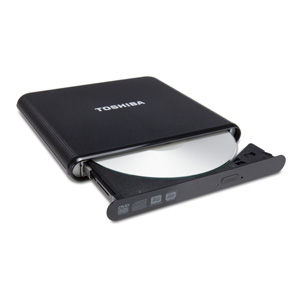
Toshiba Portable DVD Optical Drive

most netbook manufacturers do not include the optical drive in any sales, so we had to buy to be able to enjoy various multi-media entertainment in a netbook


like to watch movies, play audio CDs, even backup your data to media cd / dvd require an integrated optical drive with netbooks, a DVD optical drive produced by Toshiba laptop vendors, is the right choice, weighing only 12ons, optical drive offers portability easy to burn and play CDs and DVDs anywhere, and anytime,

Toshiba DVD optical drive is equipped with a USB cable and software WinDVD as media burner cd / dvd, you simply plug into the USB port and the Toshiba portable DVD optical drive, this will allow you directly to the netbook.

20+ A good laptop care tips

This is The fourth article on how to treat a laptop in order to remain durable, if you have not read the previous article about how to care for your laptop can read it here and here, and the third article you can read hereLaptop are a highly sensitive electronic items when not in the guard are good and not do the treatment correctly then your laptop will often go to places Laptop service. Laptop components are also very expensive in comparison with PC components. To avoid reaching your pocket money should you do Tips on How to care for Laptop below.

  1. Keep your laptop clean, wipe with a clean cloth or cotton for dust-free.
  2. Always use a laptop bag while traveling.
  3. If the laptop is in trouble, do not try to disassemble itself. We recommend that you submit to a technician or service-center nearest to you. Because maybe even damage will become increasingly severe. Especially for a laptop that is still within the warranty period - to disassemble the laptop can damage the warranty sticker (warranty seal) that is still attached to the laptop.
  4. When will lift the laptop is open, do not lift it, holding on the display / screen, lift the bottom / keyboard
  5. Avoid Vibration and Keep the laptop from the megaphone, for example the loudspeaker, machinery and heavy vehicles, and other vibration sources.
  6. Do not give anything including gloves Laptop Cover when your laptop turned on because based on the experience my friend's laptop processor laptop will die because there is no air circulation beneath the surface of the Laptop
  7. Besides damage to the hard drive and LCD, liquid spills are causing damage to the most common laptops, or use a sheet of transparent film-called 'keyboard protector'.
  8. Do not insert the diskette in the corners. Insert a floppy half-half can damage the disk-drive. Likewise, when opening or closing the CD-ROM/DVD-ROM drive tray to insert or eject a disc. Do not touch the lens on the CD-ROM tray. Hold the compact-disc at the edges, not on the disk surface.
  9. Do not move-move the laptop while still alive. Laptops who are living means the hard drive is also being driven to work so that when the scratch disk can cause the cylinder head so that it will cause damage.
  10. Take care of laptop batteries, not to leak because it can damage the battery slot.
  11. Power outages and voltage disturbances can occur at any time, at home, in hotel rooms or in the office. If possible, use the 'surge-protector' if you're using an AC outlet. And do not forget to make back-up data regularly.
  12. Keep your laptop from strong magnetic fields, liquid materials and sources of heat / cold or extreme temperature changes.
  13. Never put heavy objects on top of the laptop.
  14. Do not plug the cable modem laptop on the PBX (private branch exchange) or digital phone lines. Laptop can only use channels PSTN (public-switched telephone network). The use of phone lines in addition to the PSTN can damage your laptop modem.
  15. Avoid direct sunlight and make sure the laptop is always placed on a flat surface.
  16. If you want to wrap your laptop to be sent or for other purposes, use a strong protective box, and wrap it in foam or sponge that can absorb vibrations.
  17. Do not expose your laptop from x-ray diffraction at the airport.
  18. According to the survey, the most common laptop damage occurred on the hard drive and LCD display / screen. Hard disk damage caused by collision or fall. LCD damage is usually due to exposure to sunlight and physical pressure.
  19. In the Asian climate, humid temperatures can be a big problem for laptops that are designed in the United States. To reduce the possibility of a problem, make sure the laptop is stored in a dry and cool. If the laptop is not used for a long time, keep the laptop in place of the meeting and enter the silica gel. Silica gel is just as contained in the medicine bottle, the packaging of electronic goods (small package labeled 'Dessicant Silica Gel'). Or can be bought at the store chemicals. Silica gel is a chemical which is hygroscopic (absorbs moisture / humidity).
  20. Do not indiscriminate download free software from the Internet. Moreover, such software as if as an antivirus. Use the software that you get from the package you buy a laptop. The risk of viruses can damage into your laptop if you carelessly use the software from the Internet. If you still want to use the downloaded software, then make sure you have scanned with antivirus software you have.

                              cleaning the vents on the laptop

                              reduce noise and clean the cooling fan on the laptop,  is part of the treatment laptop that should be done routinely, to reduce noise on the cooling fan you can clean it up through the vents that are usually found on the back of your laptop, to be able to clean it you have to use special cleaners to laptop that you can buy in a store that sells cleaning laptops


                              by cleaning the dust on your laptop ventilation, will reduce noise and reduce the heat your laptop, because with a clean, dust that blocks automatic vent would be wasted, see picture below to clean the dust on the vents of your laptop, and reduce noise on a laptop cooling fan


                              Download acer aspire 5570 Utility Software

                              you can download some software that will be useful for laptop acer aspire 5570, this software is  utility software that is given by acer so this software is completely free from virus


                              eDataSecurity
                              Acer eDataSecurity Management Application

                              eFramework
                              Acer Empowering Technology Framework

                              eLock
                              Acer eLock Management Application

                              eNet
                              Acer eNet Management Application

                              ePower
                              Acer ePower Management Application

                              ePresentation
                              Acer ePresentation Management Application

                              eSetting
                              Acer eSetting Management Application

                              amd CPU Hotfix window XP for asus laptop

                              AMD CPU hotfix is usually used to repair a damaged system of windows XP running on the processor amd, software can be an alternative for those who want to improve your laptop and have a amd processor, amd processor on a laptop usually found on many laptop computers manufactured by asus,


                              amd cpu hotfix you can download for free because this software is part of the asus computer services for its customers amd as the processor that uses a computer or laptop, for AMD CPU Hotfix download the software please click on the download link below.

                              Restoring the operating system on laptop

                              in some cases re-install the operating system on a laptop is a very appropriate choice, as many programs that often hangs, the system is infected by a virus, or your operating system has been damaged which is assigned a non-functioning some features in the operating system your laptop, but some laptop manufacturers usually provide recovery software for the purpose of improving the operating system on your laptop,


                              before starting the installation process of a new operating system you are advised to first to back up important files that exist on your laptop, you can burn it on cd / DVD or perhaps move it to the external disk drive, because when we do reinstall the operating system data in the laptop will erased.

                              after you create a backup file in the media outside the laptop now you just use the operating system recovery software that is given when purchasing your laptop, or you can download at the site that complies with the brand of your laptop, but if your laptop manufacturer does not provide an operating recovery software system, you must do it manually by entering the cd / DVD that contains the software operating system that will be installed into your laptop.

                              samsung battery life extender software for N148 Corby

                              battery life extender is software used in laptop samsung N148 Corby to regulate power and view the remaining battery power your laptop, you can use this software as the setting for the notebook so that battery power in notebooks samsung N148 corby you do not quickly run out,


                              This software is provided free by samsung on as a service to its customers, to download the software battery life extender for samsung N148 Corby please click the download link below.

                              downlod battery life extender

                              tips to make your laptop battery last longer

                              after I wrote an article about several factors that cause your laptop battery runs out fast, so now I'll write some tips to conserve your laptop battery, saving battery you can do it yourself manually and you can configure according to your needs.


                              • less number of open applications, because each application will use cpu and memory load, if the cpu and memory load, very high would result in battery runs out quickly. close all the applications you're not using,
                              • reduce the brightness of your laptop screen to make the battery last longer, you can adjust the brightness of the screen every kind of laptop on the control panel.
                              • remove unused peripherals, such as external-Rom drives, PC cards, and various other types of peripherals that can accelerate the expiration of your laptop battery.
                              • reduce the speed of the processor, even though this sounds ridiculous, where everyone wants a stable speed of the laptop, but this could make the battery last longer, you can set the processor speed according to the type of your laptop,
                              • turn off the wireless connection when not in use,
                              • change the power settings on the control panel to save power your laptop.

                              several factors that make a fast laptop battery is empty

                              keep the battery in order to remain durable is no obligation for those of you who have a notebook / netbook, there are no standards how long the battery will live in a notebook, it is in because of the extent of application and the CPU load when in use, it can make the battery quickly drains are not even can long endure.

                              several factors that can lead to loss of battery power, among others

                              • battery life is too long, resulting in battery power is weak, and quickly exhausted.
                              • save a notebook for too long or not in use, will reduce battery power below the recommended level of voltage your notebook,
                              • let the battery in a discharged condition in the long run, or let the battery in a full condition in the high room temperature,
                              • run applications that have a high load on the CPU to speed up the endless battery, such as playing 3D games.

                              3 important parts that you need to clean on the notebook

                              some impurities that may interfere with its performance or even can make your notebook easily damaged, such as dust, cigarette ash, animal hair, are vulnerable at all if you are not immediately clear, with a clean notebook periodically to extend the lifespan of your notebook, below are some tips to clean up some important parts on your notebook,


                              I / O Ports
                              on the back or side usually there are several ports, which is usually used for purposes of your notebook, such as the charger port usb port, RJ45 port, it suggested you to clean up these ports with a small broom, also you have to clean the vents located on your notebook,

                              Clear display
                              Clean your notebook screen is quite easy, you just use a clean cloth, if necessary you can use fluid to clean the screen of your monitor, if your notebook screen has no plastic coating that protects your notebook LCD screen, advised to buy it back,

                              Cleaning the keyboard
                              clean the keyboard with a small vacuum cleaner is a pretty good idea where all the dust under your keyboard will be easily lifted

                              you may be wanto to buy notebook cleanser, i recomend you buy this notebook cleaning Kit

                              BackUp and recovery Windows Xp On laptop HP DV6 Series

                              Recovering System Information
                              Tools provided by the operating system and PC Recovery software are designed to help you with the following tasks for safeguarding your information and restoring it in case of a systemfailure:

                              • Backing up your information regularly to protect your important system files.
                              • Making a set of recovery discs (PC Recovery software feature). Recovery discs are used to start up (boot) your computer and restore the operating system and software programs to factory settings in case of system failure or instability.
                              • Creating system restore points (operating system feature). System restore points allow you to reverse undesirable changes to your computer by restoring the computer to an earlier state.
                              • Recovering a program or driver (PC Recovery software feature). This feature helps you reinstall a program or driver without performing a full system recovery.
                              • Performing a full system recovery (PC Recovery software feature). With PC Recovery, you can recover your full factory image if you experience system failure or instability. PC Recovery works from a dedicated recovery partition on the hard drive or from recovery discs you create


                              Backup Suggestions

                              • Create system restore points using Windows XP Professional System Restore feature.
                              • Store personal files in the My Documents folder and back up these folders periodically.
                              • Back up templates stored in their associated programs.
                              • Save customized settings in a window, toolbar, or menu bar by taking a screen shot of your settings.The screen shot can be a time saver if you have to reset your preferences.To copy the screen and paste it into a Word document

                                Download software eRecovery acer aspire Notebook

                                Acer eRecovery Management is a versatile backup utility. It allows you to createfull or incremental backups, burn the factory default image to optical disc, and  restore from previously created backups or reinstall applications and drivers. By default, user-created backups are stored to the D:\ drive.


                                Acer eRecovery Management provides you with:

                                • Password protection (Empowering Technology password)
                                • Full and incremental backups to hard disk or optical disc
                                • Creation of backups:
                                      • Factory default image
                                      • User backup image
                                      • Current system configuration
                                      • Application backup
                                • Restore and recovery:
                                     • Factory default image
                                     • User backup image
                                     • From previously-created CD/DVD
                                     • Reinstall applications/drivers

                                Download eRecovery acer aspire

                                Notebook restarts when in use


                                In some cases experienced by some users of notebooks, the notebook is being used frequently occur suddenly turns itself off. All you have to consider is whether your notebook is experiencing overheating or excessive heat. If the case does your notebook overheated traits that you can see before your notebook is dead then there will beep several times, then notebook dies.

                                The things you need to do first is try to check whether your notebook processor fan to work normally. To make sure check the processor fan on the processor where the location of your notebook, the most notebook processor location on the left of your notebook, but some are on the right, although this is rare because most notebook processors on the right then the exhaust air from inside the fence will right and this will be very annoying if you prefer to use an external mouse because it will tersa heat in your hands.

                                To ensure the location of the processor try turning your notebook, usually under processor then there will be holes that drain the air out. Position the fan usually can be seen from the crevices of the air holes, so that we can see whether the fan is spinning or not, or we can put our hands to feel what no air flow out or not from the slit hole.

                                The important thing to note is that the average new notebook now fan will not automatically direct spin when the notebook is turned on, the average notebook bios has mengkonfugirasi at a certain temperature a new fan will spin, this is related to battery saving function on the notebook.

                                If you can ensure that your notebook fan does not rotate, then surely that's why your notebook suddenly died, the solution is to replace it with a new fan. Besides the issue of fan some other cause that could also be the cause of his position is not fitting the processor heatsink, you could try to remove and then put it back. Can also because air circulation is not smooth, usually experienced by notebooks which are often used in the field so much dust into the notebook casing and disrupt air circulation. The solution is to clean it with a brush.

                                fix the notebook hard drive is not detected

                                Perhaps a case like this once you experience, your notebook does not detect any hard drive connected to your notebook, you do not immediately conclude that your hard drive is damaged, it could be a possibility that the risk is the last worst thing is you have to replace your notebook hard drive.

                                A notebook hard drive that's both an Parallel ATA or Serial ATA, most directly connected to the motherboard via a slot. A notebook usually been designed as closely as possible to reduce the effects of shocks that could lead to the shifting position of the slot that connects the hard drive to the motherboard. But not an impossible thing these events can occur, the slightest change its position could have led to the pins on the hard drive is not connected properly with your notebook motherboard.

                                In addition to its shock, can also be caused by other factors. If your notebook is used of course remove the effects of heat because the performance is done, heat effect over time can cause crusts on hard drive slot pins, both contained in the hard drive itself or on the motherboard.

                                The solution to overcome these problems, first you must know first position is where the hard drive, then try to open and remove the hard drive from the slot. My advice, because you do not know exactly how to position the hard drive was installed in the motherboard, first consider carefully how the hard drive is connected to the motherboard, is there a lock or some kind of security, because it would be very dangerous if you just pull origin. After a hard drive regardless of the slots in the motherboard try cleaning the slot found on motherboards are also hard to use liquid thinners or contact cleaner, then dried with a clean soft cloth. Reinstall your hard drive carefully and try to turn on your notebook

                                8 simple tips for caring your notebook

                                How can you have a notebook for optimum performance and always look shiny? Here are some simple tips on caring for and prevent your notebook from damage due to lack of maintenance and increase the age of your notebook.

                                1. Do not place the notebook on the floor.

                                When your notebook on the floor, then the risk of laptops being walked on toes, your children, or pets will be very big. Small children will think your notebook and your pet toys may damage certain parts of the laptop. In addition, the laptop is placed on the floor will be quickly soiled by the dust.

                                2. Never drink or eat or put drinks containing fluid around the notebook.

                                This is very dangerous, because the notebook is very sensitive to the fluid on the notebook, such as a liquid into the keyboard, or even enter into your notebook machine.

                                3. Use stabilizer

                                If you are working on the notebook with the use of electricity (without batteries), then you should use a stabilizer that can prevent the occurrence of an unstable electrical voltage to your laptop. that can make your notebook easily damaged,

                                4. Do not place your Notebook on the surface that is too soft.

                                For example, put your notebook on the couch is very soft, so the laptop becomes visible somewhat submerged in the sofa. This is very dangerous, because it can inhibit the release of heat from the notebook and make your notebook overheating.

                                5. Do not place any objects between the keyboard and laptop screen.

                                Often someone who is using a Notebook, then put paper over the notebook keyboard, then close the laptop. This is very dangerous, because the risk of a big screen scratches. Surely you do not want to replace a laptop screen scratch because it?

                                6. Never attempt to disassemble your own notebook.

                                This is a very unwise action. notebook is not like radio or tape recorder. Many parts of the very small of the manufacturer have been assembled using robotic precision. If you're careless, then you could be badly damaged Notebook. Always carry a notebook that is damaged to a dealer or service center in accordance with the brand of your notebook.

                                7. Not carelessly download free software from the Internet.

                                do not ever try to download illegal software let alone download from warez sites, because the software could have been infected with viruses, or deliberately want to insert a virus that can damage your notebook or may steal the data in your notebook, if you still want to use the software the download, then make sure you have scanned with antivirus software you have. Use the software that you get from the Notebook package you buy.

                                8. Be careful when carrying your notebook in the bag.

                                Do not use any bag to carry your notebook. Use a bag that is used for notebooks, so things will not scratch certain parts on the notebook,

                                Notebook RAM memory upgrade is easy

                                Notebook ram upgrade activities are usually done because of a demand, whether it demands or the demands of software because your memory is damaged and must be replaced, an addition to the notebook memory will not add to 100 percent speed but will be more stable when in use for the previous software not so stable on your notebook Especially when I'm using heavy applications like video processing / audio / graphics. In addition, upgrading RAM is also required when installing a software. For example, to install the operating system Windows Vista Home Edition 512 MB of RAM required. So, if the notebook has only 256 MB of RAM, the installation process will halt with a message of less RAM memory. Another factor is that most notebook RAM memory upgrade is easy.


                                After the additional memory available for your notebook, do the following steps: 

                                1. Turn off the computer and disconnect the power cable. 
                                2. Turn the notebook and find the location of installed memory. usually provide written instructions (such as "Memory") at the bottom of the notebook. If writing is not available, try to open a cover (usually locked with one or two screws) and see if there are memory modules installed in it. 
                                3. If you already know, go screw with a screwdriver. Then, lift the lid. 
                                4. If you want to install additional memory, additional memory to insert a sideways slot. Exposed to the pins on the memory slot and adjust the gap on the memory chip with a notch in the slot. 
                                5. When it was appropriate, press the memory module downwards until a click and the module is attached firmly. 
                                6. If already installed, install the cover and screw back. 
                                7. Done. Turn on your notebook back.

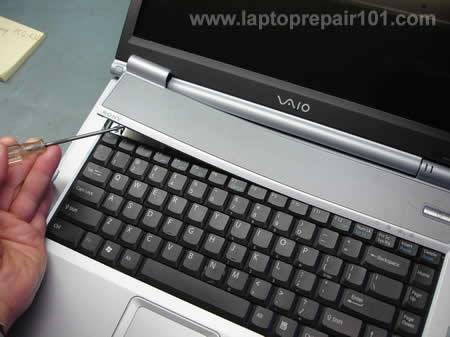
                                notebook keyboard repair

                                notebook is a gadget that is very flexible, with a minimalist form will facilitate you to take everywhere, like the cafe or to the office, even if you're traveling though, sometimes there are unexpected events which causes your notebook keyboard broken, like when your drinking water soaked, and this causes the breakdown you  keyboard or even the keyboard until you can not in used, but not yet his despair before you try the first few of these tips.


                                1. dismantle the notebook casing
                                2. check whether the function keys on the keyboard mechanically
                                3. open the rubber cap that serves as a spring
                                4. film movement contacts and make sure nothing suspicious or problematic

                                for solution 
                                1. Film Clean contacts with isopropyl alcohol (available at pharmacies)
                                2. Remove the mechanical guides (blue plastic clamp)
                                3. Put the keyboard in a standing position
                                4. Alcohol dripped into the opening keyboard using cutten bud. (In this way can clean the contacts with both)
                                5. Wait until the isopropyl alcohol-dry really
                                6. After reinstall the keyboard dry

                                Entri Populer

                                Followers

                                Mac software reviews Download internet explorer for mac Blog Directory Find me on Bloggers.com